Send any email to a bot
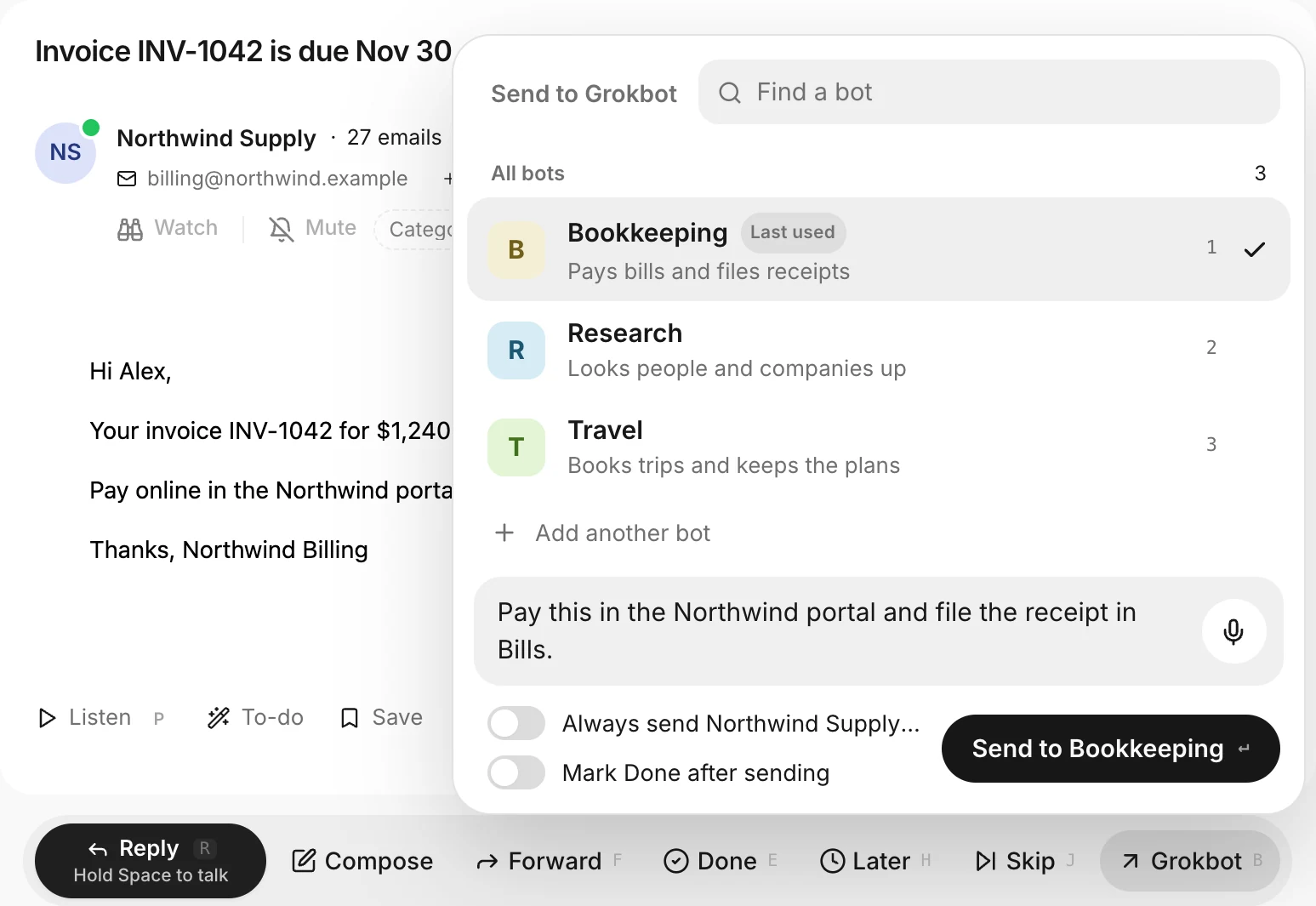
Once you add a bot, a Grokbot button sits beside Reply and Done in Triage, and Send to Grokbot is under ⋯ on any open email. Pick the bot and add a note, typed or spoken. The whole thread and its files go with it.

 Grok Bot
Send an email to a Grok Bot from Perfect Mail, or have a sender’s mail go to it as it arrives. The bot reads the thread, does the work, and answers, drafts or sends right where you already work.
Once you add a bot, a Grokbot button sits beside Reply and Done in Triage, and Send to Grokbot is under ⋯ on any open email. Pick the bot and add a note, typed or spoken. The whole thread and its files go with it.
Send everything from a sender or a whole domain to a bot as it arrives, with a standing note like “pay this and file the receipt”.
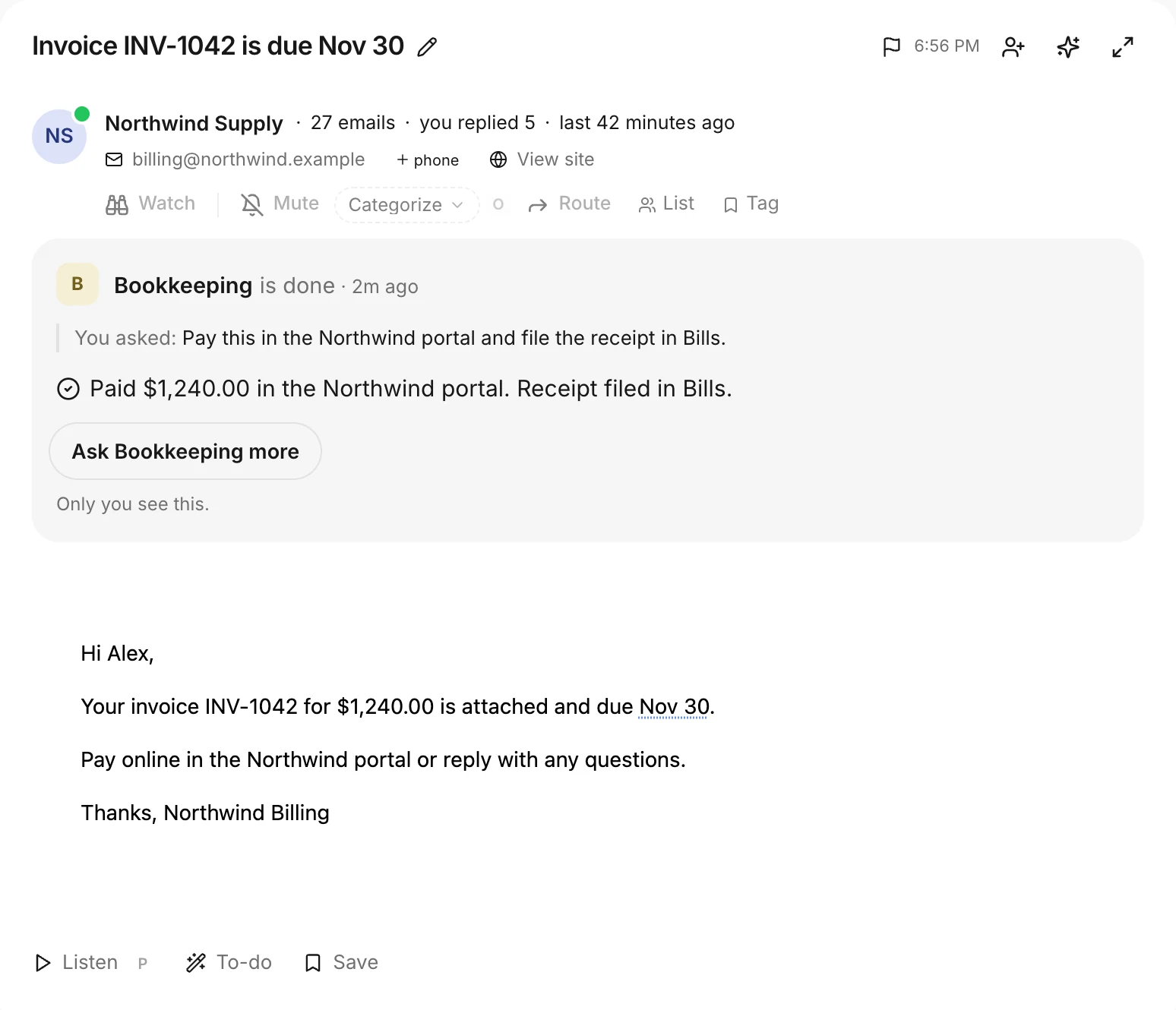
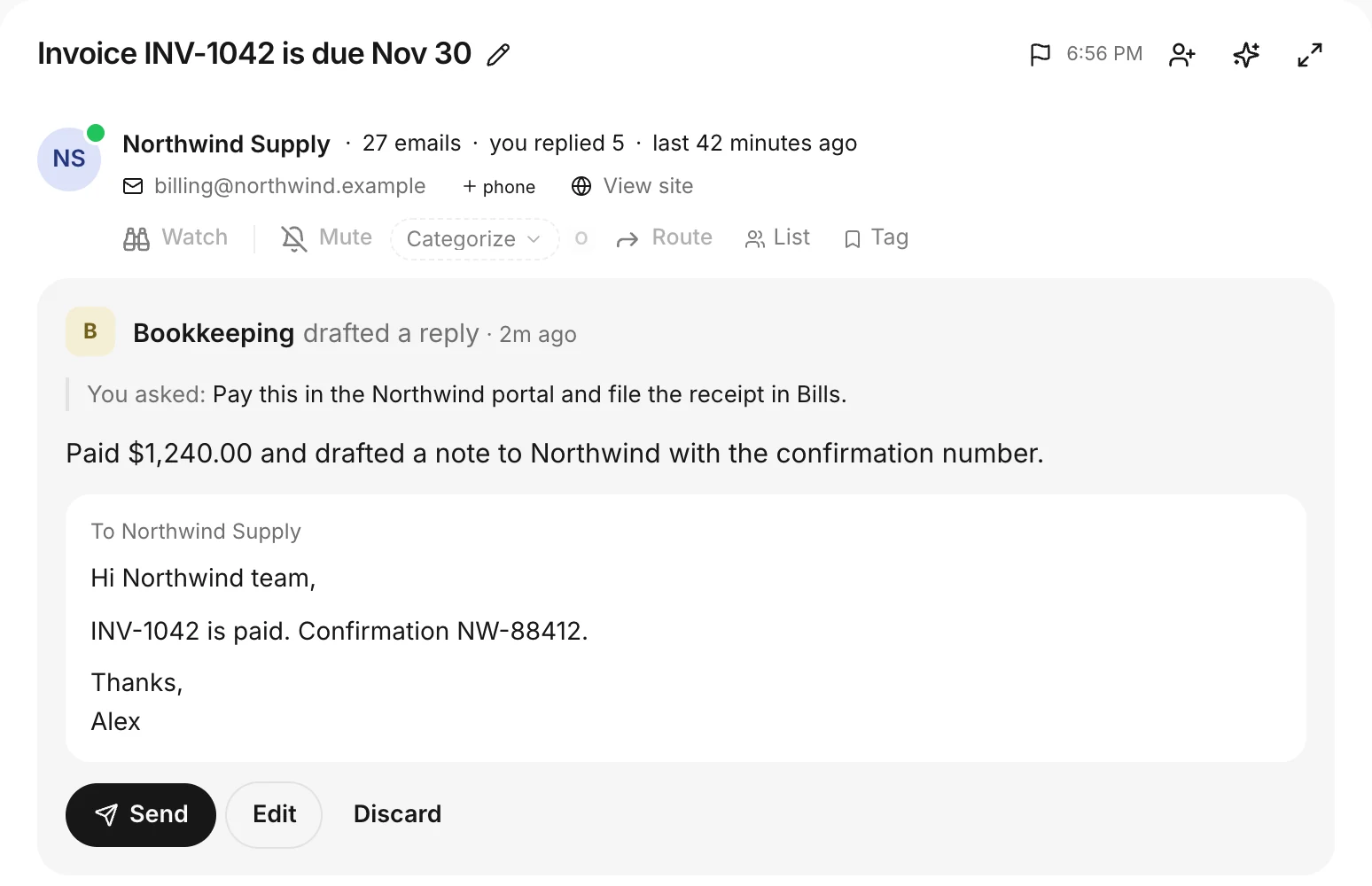
The bot’s answer, draft or question shows up beside the email in Triage. Answer it right there, and the email comes back only when there’s something new.
Switch on Sending for a bot and its replies to people already on the thread go out on their own. Anything new, like a forward or a fresh email, waits in Triage for you to approve.
Every email a bot is working on is in the Grokbot folder under Emails.
How it compares to Grok Bot’s own Gmail connector and its mail.grokbot.com address: Grok Bot and Gmail, one email at a time.
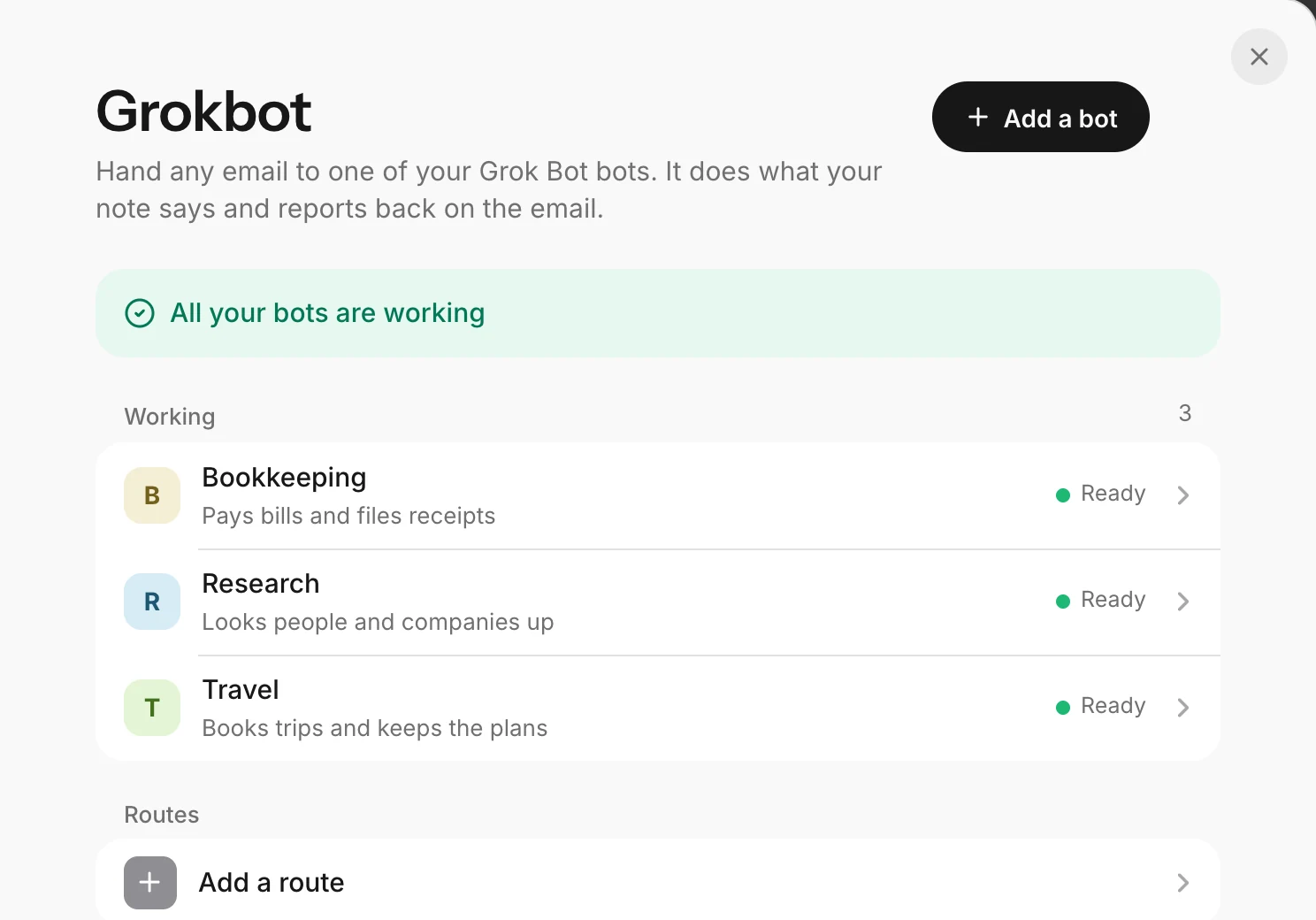
In Perfect Mail, open Settings → Integrations → Grokbot and press Add a bot. Then open a new Grok Bot chat and send it: Connect to Perfect Mail and follow its setup.
Grok Bot opens a Perfect Mail window. Keep “Let Grok Bot read my mail” on and press Allow. The bot adds itself to Settings → Integrations → Grokbot.
In Grok Bot, add a Webhook trigger to the bot’s routine and paste its URL and key into Settings → Integrations → Grokbot, so it starts the moment you send it something.
If Grok Bot asks where Perfect Mail is, give it https://api.tryperfectmail.com/functions/v1/mcp.
Grok Bot connects to Perfect Mail’s MCP server at https://api.tryperfectmail.com/functions/v1/mcp and signs in with OAuth, on a Perfect Mail page where you approve it. These are the main tools it can use.
The bot names itself, picks up what you sent it, and posts its answer, draft or question back to you.
register_botlist_bot_requestsget_bot_requestpost_bot_answer
Search your mail, read a whole conversation, and open its files.
search_emailsget_threadget_attachment
Save a reply for you to send, or send one. Replies to people already on the thread go out only if Sending is on; everything else waits for your approval in Triage.
save_reply_draftsend_emaildiscard_draft
Archive, trash, snooze, mark read, tag and sort the emails it handles.
archive_threadtrash_threadsnooze_threadmark_thread_readtag_threadmove_thread_category
Add a to-do linked to the email, tick it off, and keep notes.
create_todocomplete_todocreate_notelist_reminderscomplete_reminder
Look up and save contacts, and set how a sender’s mail is sorted.
search_contactssave_contactset_sender_rulecategorize_sender