


Magic Minutes + Ultra Drafts
Your Roam meeting ends. Your follow-up is already written.
When a Roam meeting with people outside your company ends, Roam’s Magic Minutes land in Triage with an Ultra Draft of your follow-up email right under them: addressed to your outside guests, written in your style from what was actually said. Read it, fill in anything it left blank, press Send.
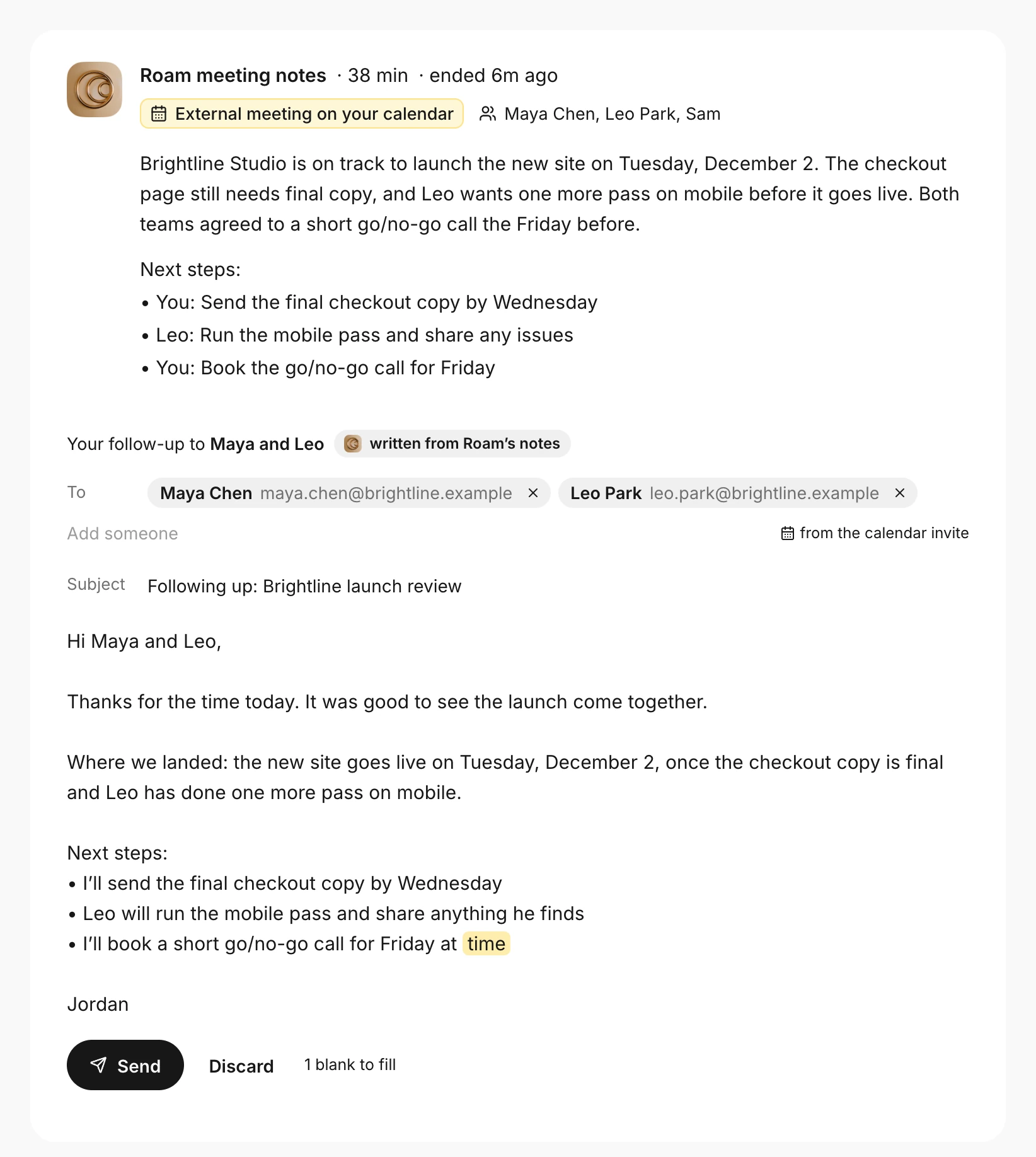
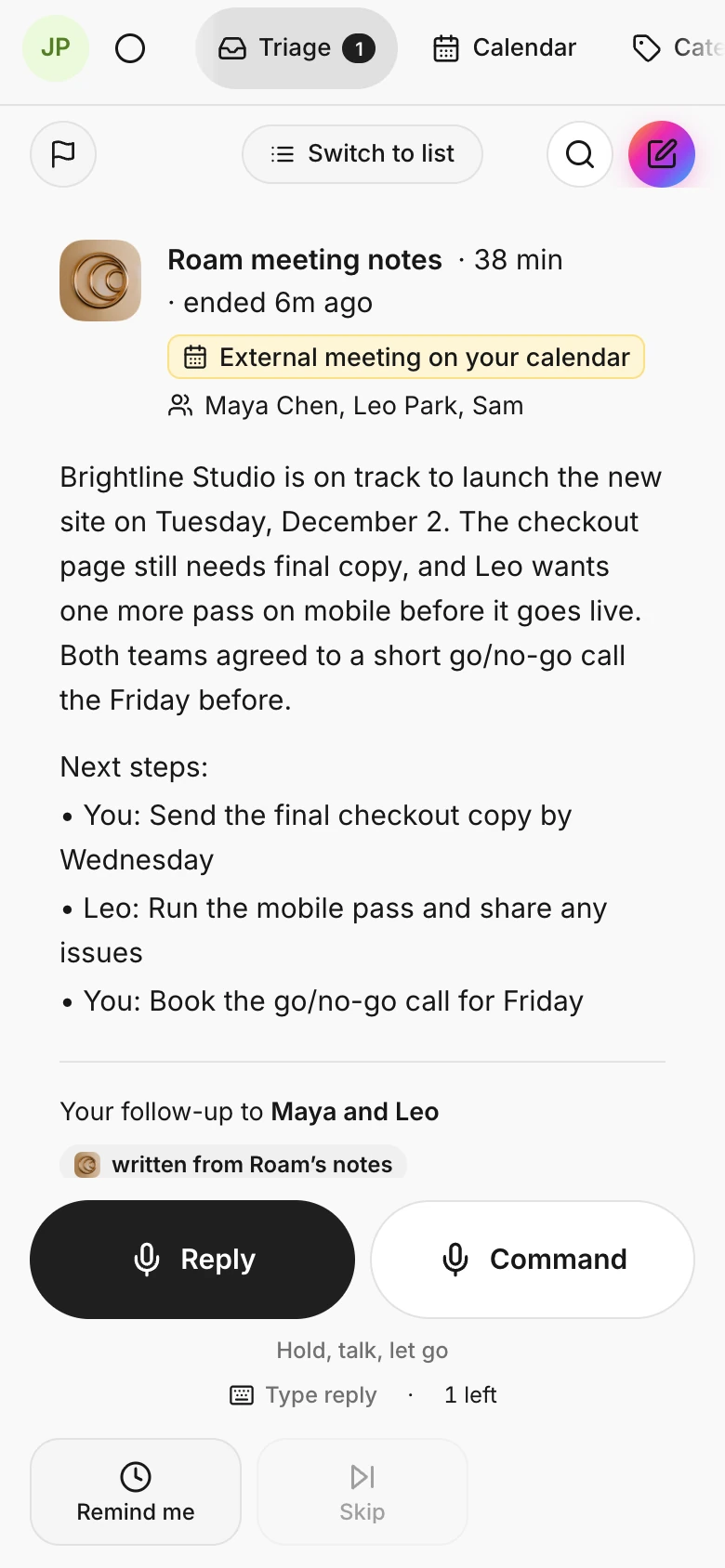
From “thanks everyone” to sent, in one press.
- 1
The meeting ends
A Roam meeting on your calendar, with guests from outside your company, wraps up. Drop-ins and quick calls under five minutes are left alone.
- 2
Magic Minutes arrive
Roam’s summary and next steps show up in Triage, with who was there and an External meeting tag, so you know exactly which call it was.
- 3
The Ultra Draft is waiting
Your follow-up is written underneath, to the outside guests from the invite. Change who it goes to, the subject or the words, then Send or Discard.
Nothing ever sends on its own. The draft is written only from Roam’s summary and next steps, never the recording or the transcript, and anything the notes don’t say is left as a blank for you to fill.
Send to Roam
Hand any email to your team.
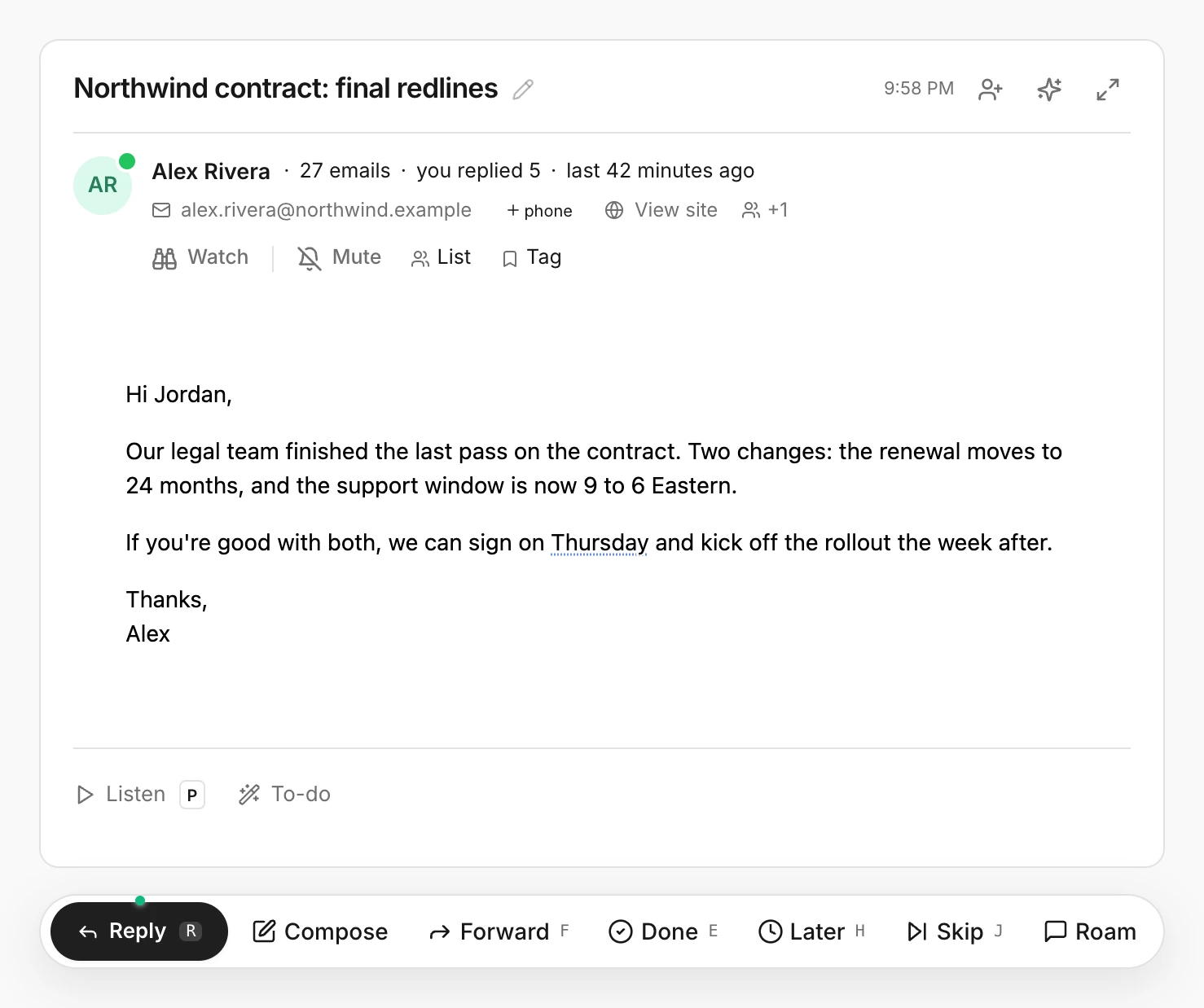
Press Roam on any email, in Triage or wherever you’re reading it. Pick a chat or a person, the last one you used is already picked, add a note if you want, and press Enter. It lands in Roam with who it’s from, the subject and the start of the email.
- Every chat and person you have in Roam, newest first, to search by typing.
- Posted from your own Roam bot, so your team sees it came from you.
- A Roam button on the Triage rail you can turn off in Settings.
Magicasts
Show it instead of typing it.
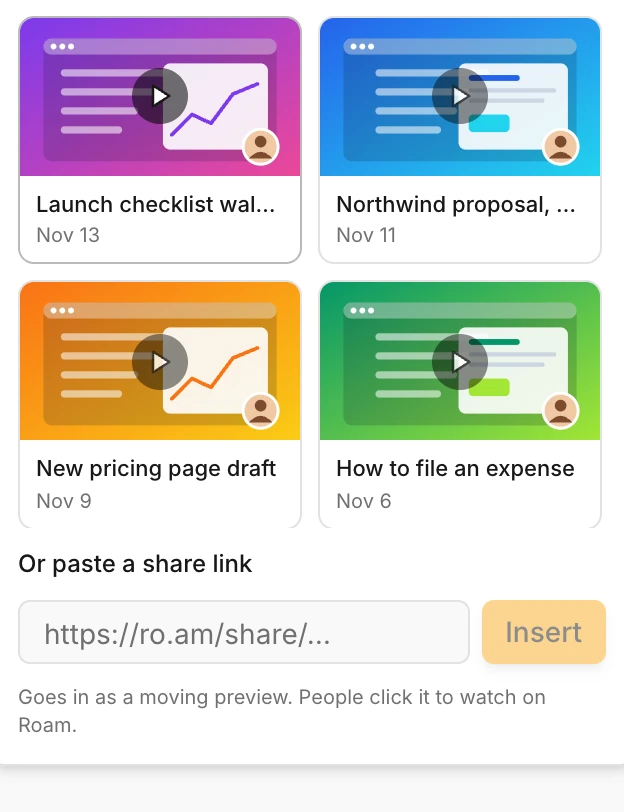
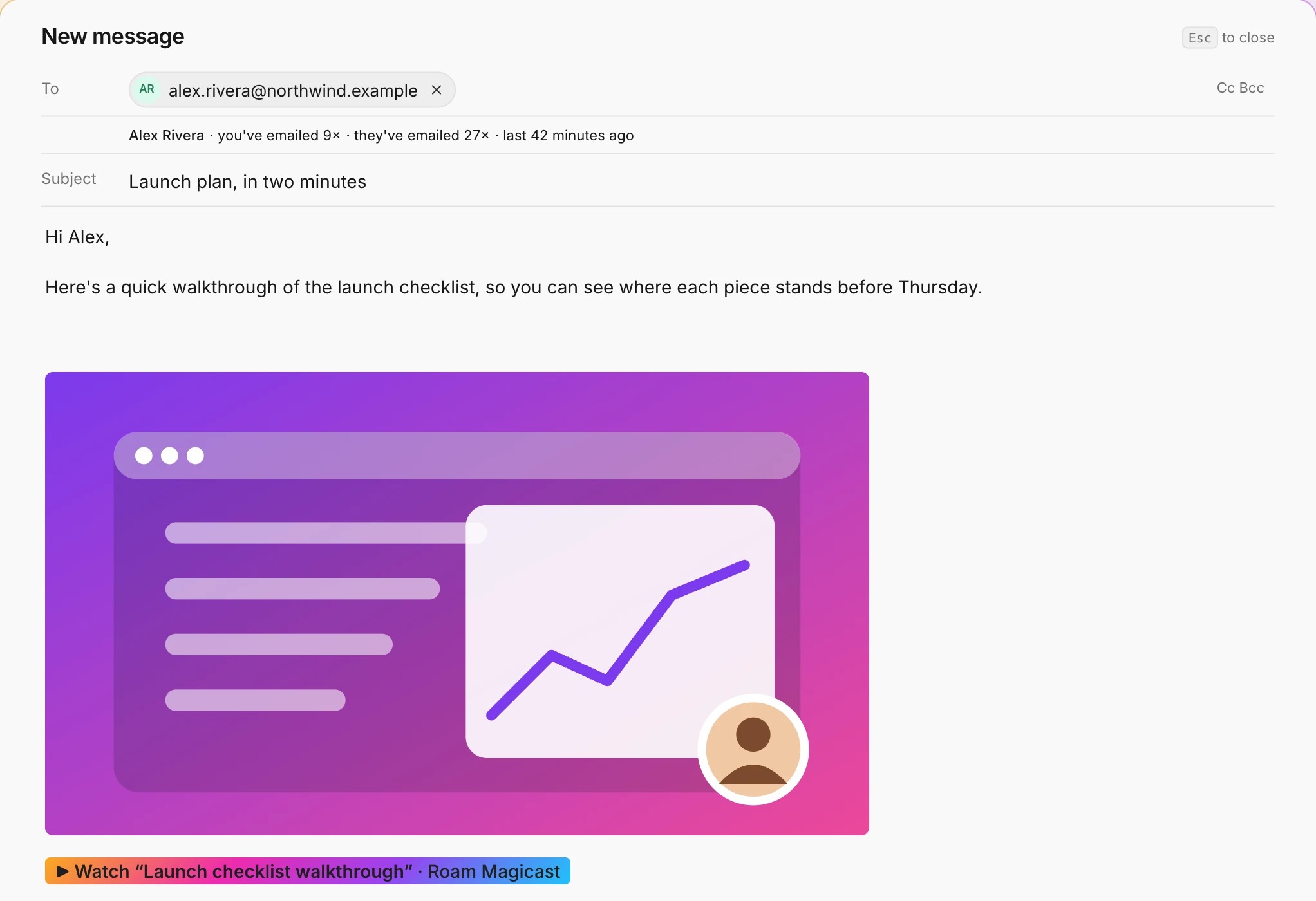
The Roam button in Compose opens your newest Magicasts. Pick one and it goes into your email as a moving preview with a Watch link, so the person you’re writing to sees it the moment they open your email. Got a share link from someone else? Paste it.
Meetings
Meet in your Roam room.
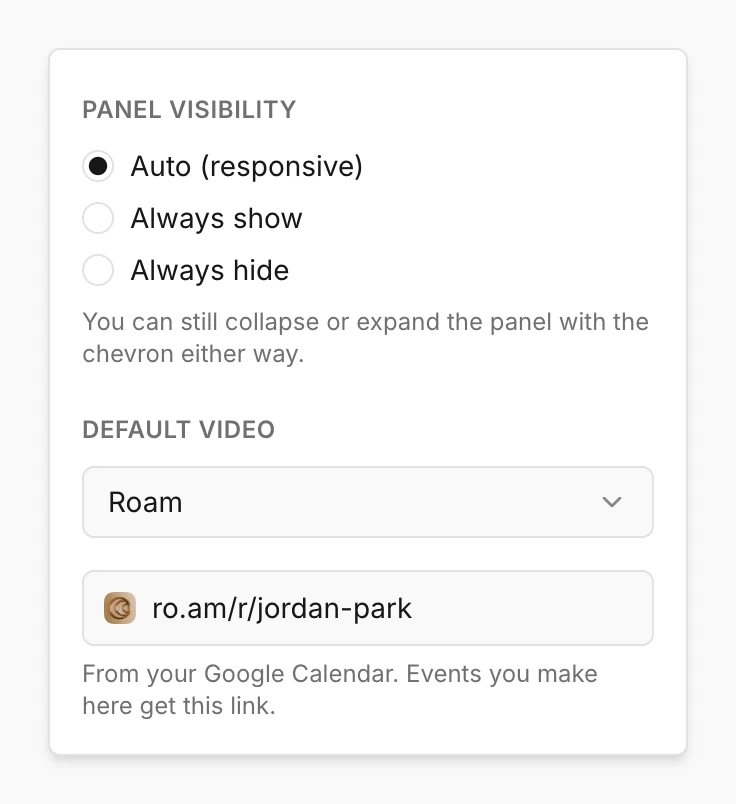
Roam is a video choice on every meeting you set up in Perfect Mail, next to Google Meet and Zoom. Make it your default and every new invite carries your Roam link. Perfect Mail finds your link in the Roam meetings already on your calendar, or you paste it once.
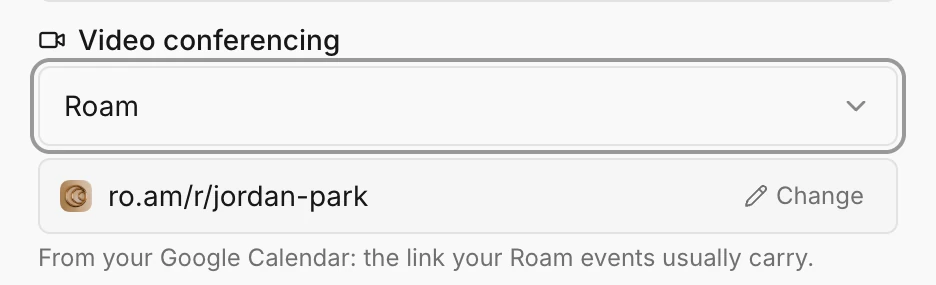
Paste a Roam token and you’re set.
- In Roam, open Settings, then User Settings, then Developer, and make a Personal Access Token named Perfect Mail.
- Tick Chat: read, Chat: write, Magicast: read, Magicast: share link and Meetings: read, and copy the token.
- In Perfect Mail, open Settings, then Integrations, then Roam, paste it and press Connect. Turn on Follow-up emails after external meetings.
No Developer section in Roam? A Roam admin turns it on under Administration, then Developer. New to Roam? Get it here.
The full guide, with meeting follow-ups and how it compares to copy and paste: Roam email integration.
Your token and your data
- Your token stays on our servers, is never shown again in the app, and is used only for the calls listed here.
- Perfect Mail reads nothing from your Roam chats. It lists them so you can pick one, and posts only what you send.
- For a follow-up it reads the meeting’s summary and next steps, never the recording or transcript.
- Disconnect in Settings, then Integrations, then Roam. The token is revoked in Roam and deleted here. What you already sent stays in Roam.
Limitations of our connection
- Send to Roam posts the start of the newest message, not the whole thread or its attachments.
- It posts from your own Roam bot, not under your name.
- Meetings use your existing Roam link. Perfect Mail can’t make a new Roam room or record a Magicast.
- Ultra mail stays in Perfect Mail and can’t be sent to Roam.
- Follow-ups are made for Roam meetings on your calendar with someone from outside your company, five minutes or longer.
How it uses Roam’s API.
Calls go to https://api.ro.am/v1 with your token. Perfect Mail calls these and nothing else.
- GET
/token.infoWhen you connect, and when you press Check the connection, to see who the token belongs to and what it may do.
- GET
/chat.listWhen you open Send to Roam, to list your chats, newest first.
- POST
/chat.postWhen you press Send, to post the email to the chat you picked, from your own Roam bot.
- GET
/magicast.listWhen you open your Magicasts in Compose, for your newest 24.
- GET
/magicast.infoWhen you pick a Magicast, for its title and cover.
- POST
/magicast.shareLinkWhen you pick a Magicast, for the link people click to watch it.
- POST
/token.revokeWhen you disconnect, so the token stops working in Roam too.