Grok Bot Gmail: Hand Any Email to Your Bot
Connect Grok Bot to your Gmail or Outlook through Perfect Mail. Hand it any email with a note, get its answer on the email, and approve anything new it sends.
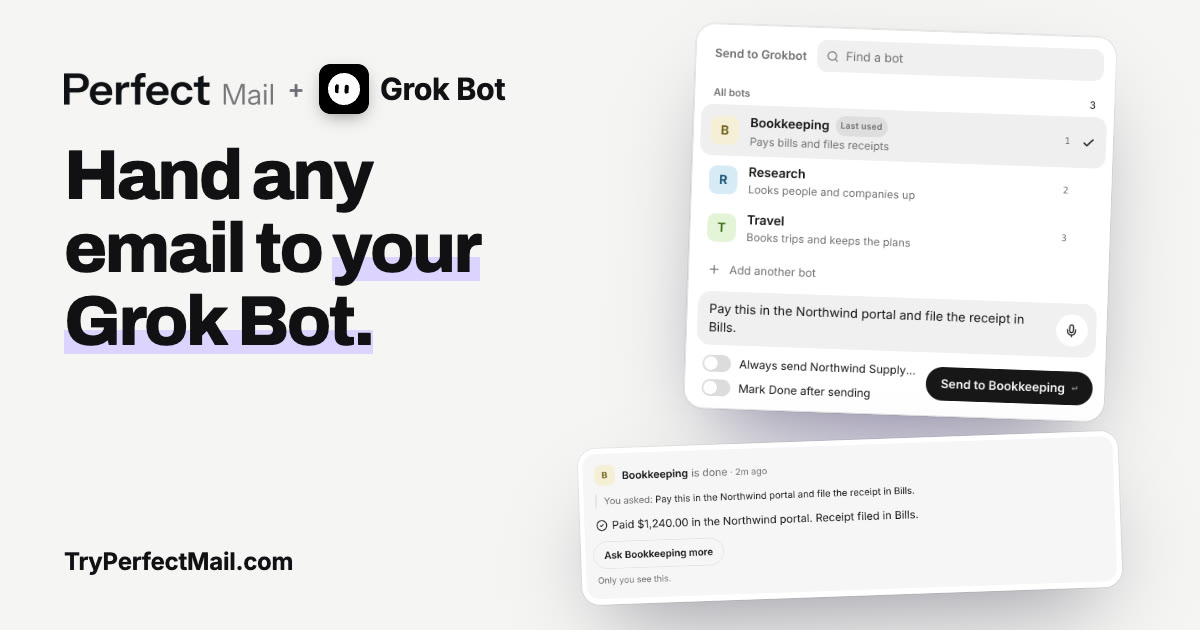
Short answer: You can connect Grok Bot to Gmail with its own Gmail connector, or give it an address at mail.grokbot.com and forward mail to it. Perfect Mail adds a third way: from your Gmail or Outlook inbox, hand any one email to a Grok Bot with a note, and its answer, draft or question comes back on that same email, while anything new it wants to send waits for your OK.
Grok Bot gives you AI teammates with their own computer. They sign in to your tools, work while your laptop is closed, and finish real jobs: pay a bill, look someone up, book a trip. A lot of that work starts in your email. So the question everyone asks is how to get Grok Bot into Gmail without handing it the keys and hoping for the best.
Can Grok Bot access Gmail?
Yes. There are three common ways to give a Grok Bot your email, and each works differently.
- Grok Bot's Gmail connector. Add Gmail under Connect apps and the bot can search, read, draft, send and label mail in that mailbox. It connects one mailbox at a time, and you tell it what to do in a Grok Bot chat, not from the email itself.
- The bot's own address. Grok Bot can claim an Agent Email address at mail.grokbot.com. You set up forwarding rules in Gmail or Outlook, and the bot only sees what you forward. Its replies come from the bot's address, not yours, and its answers stay in Grok Bot.
- Perfect Mail's Grok Bot integration. Your bots connect to Perfect Mail, where your Gmail and Outlook accounts already live. You send a bot one email with a note, right from the email. The answer comes back on that email, and new emails a bot wants to send wait in Triage until you approve them.
The first two are fine for a bot that runs a whole inbox on its own. Perfect Mail is for the way most people actually delegate: "this one, please, and here's what I want."
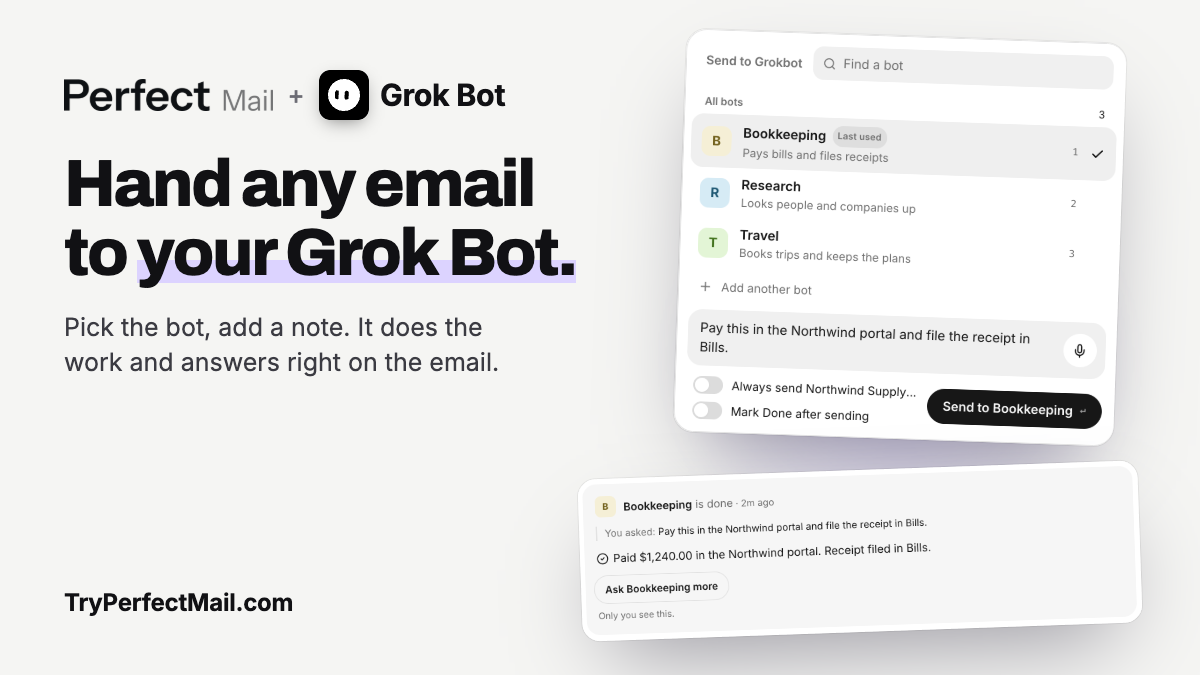
Send any email to a bot
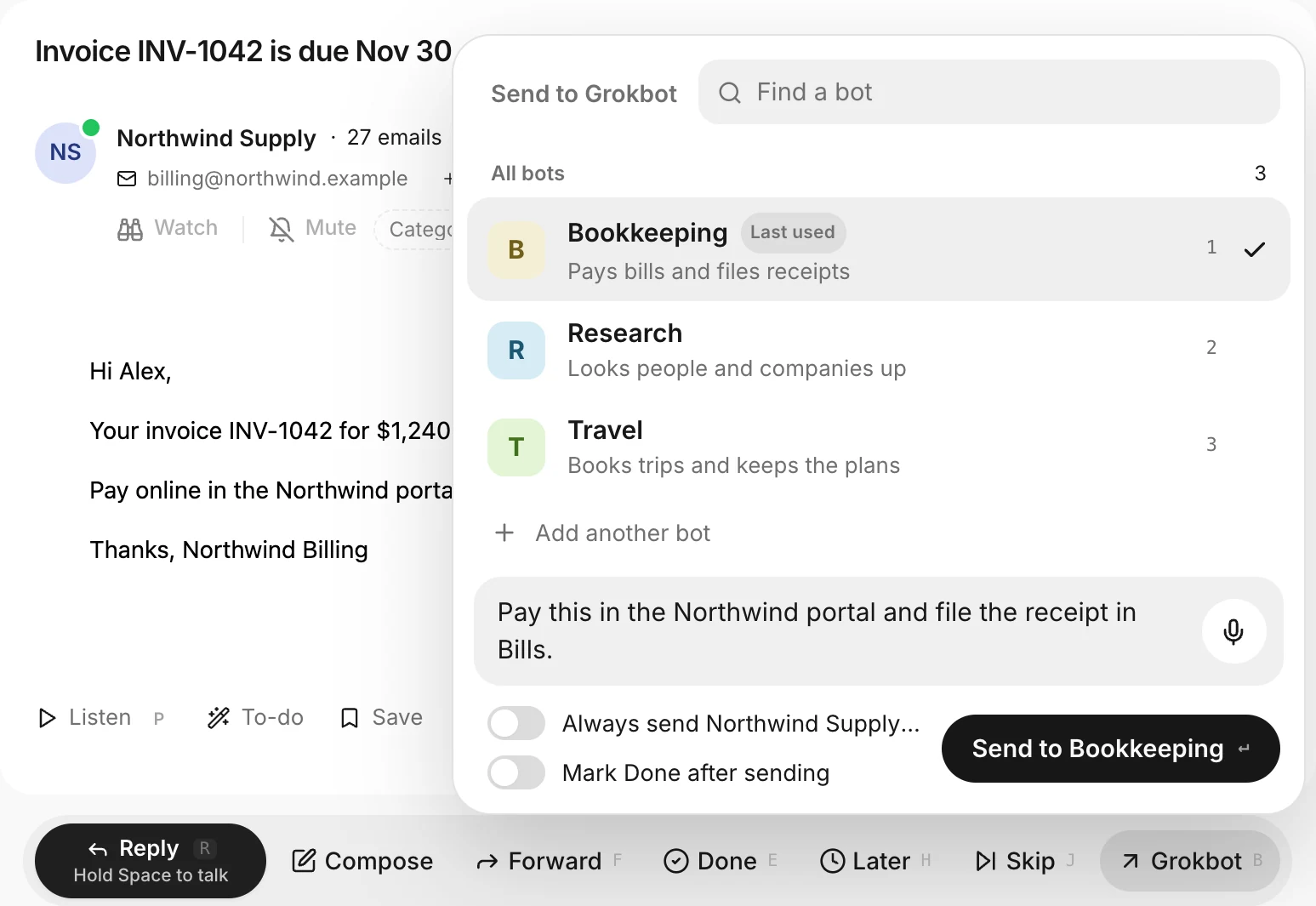
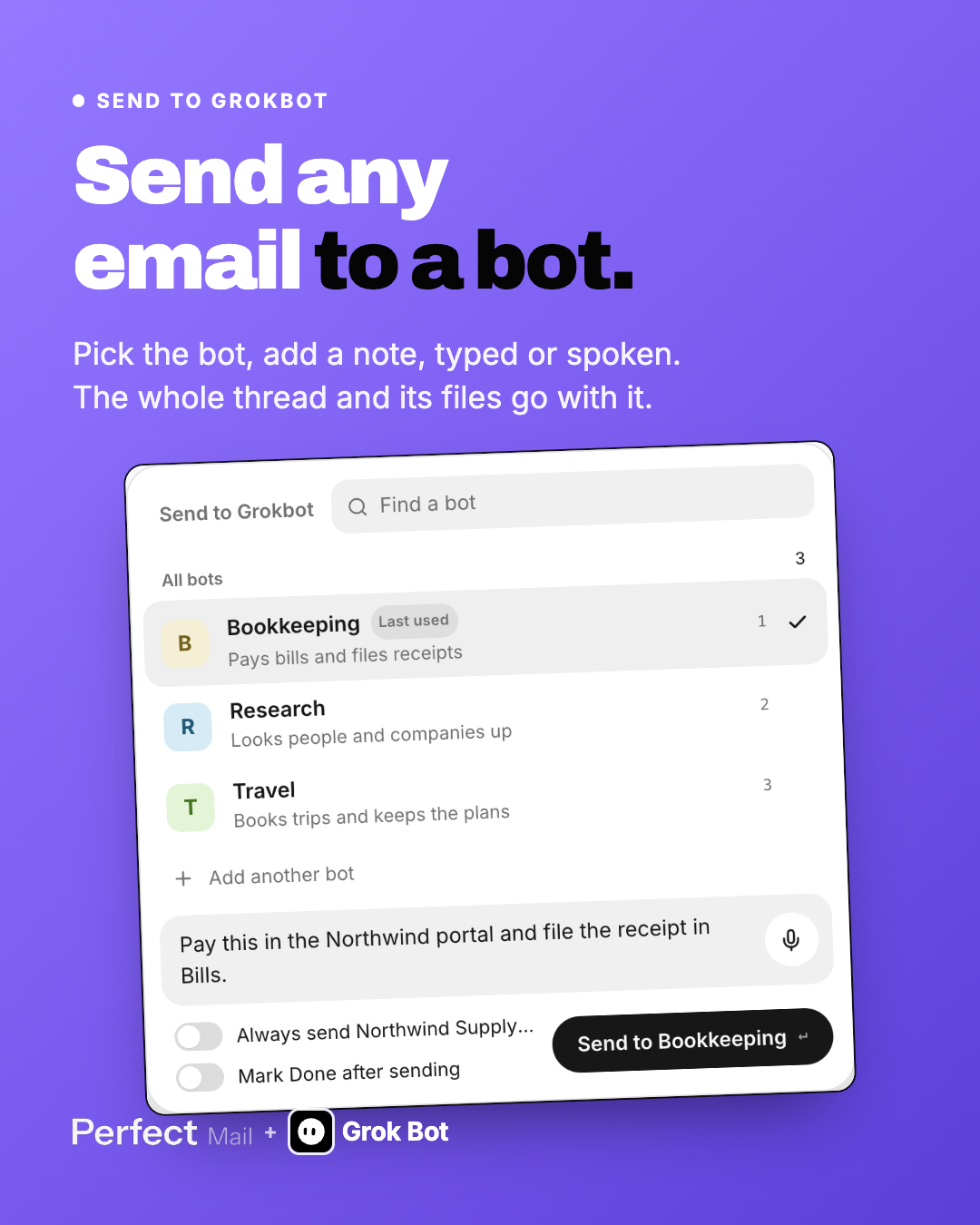
Once you add a bot, a Grokbot button sits beside Reply and Done in Triage, and Send to Grokbot is under ⋯ on any open email. On a computer, press B. Pick the bot, add a note like "pay this in the supplier portal and file the receipt", typed or spoken, and send. The whole thread and its files go with it.
Perfect Mail reads the email and puts the bot most likely to want it at the top, so a bill offers your bookkeeping bot first.
The answer lands on the email
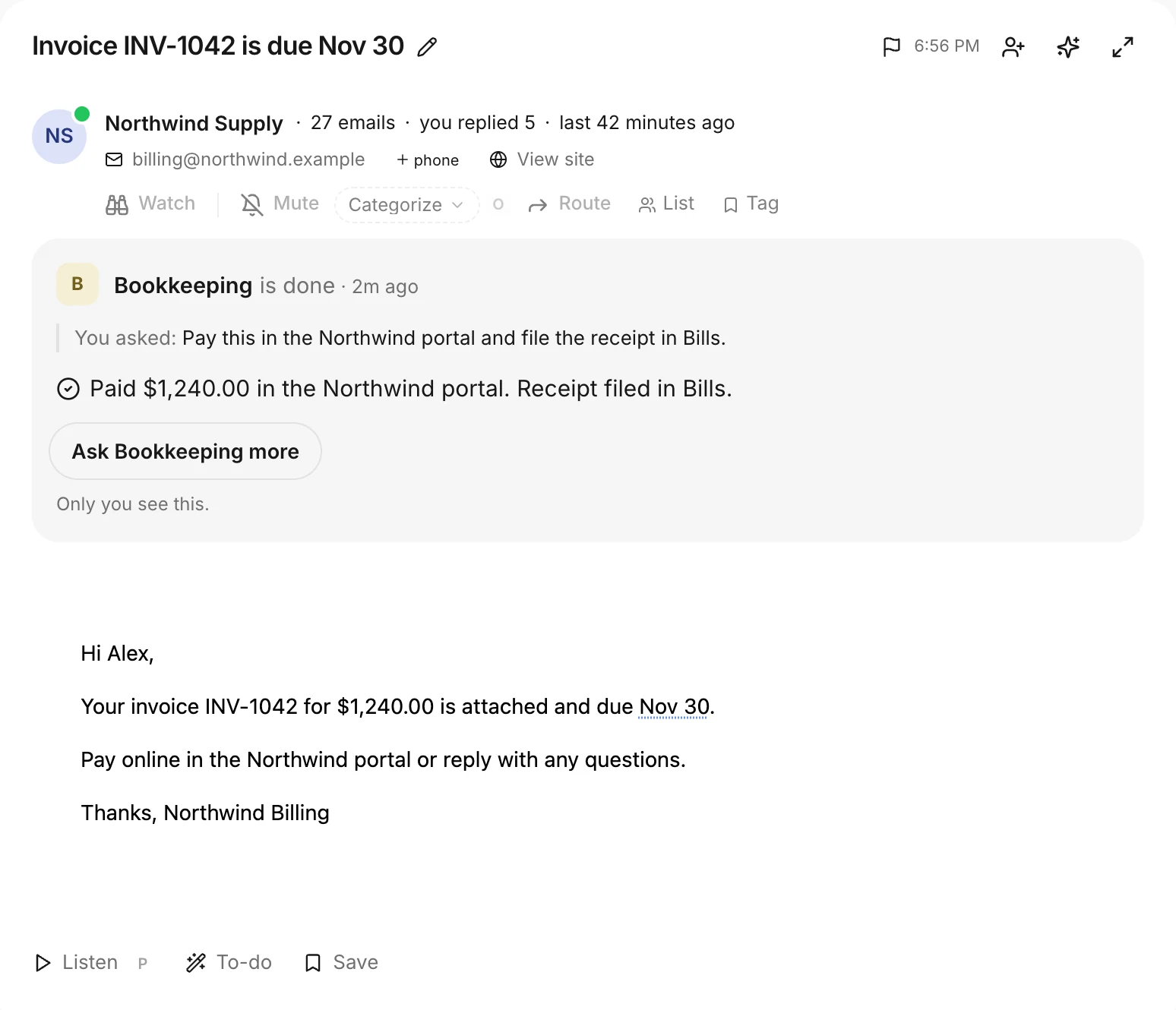
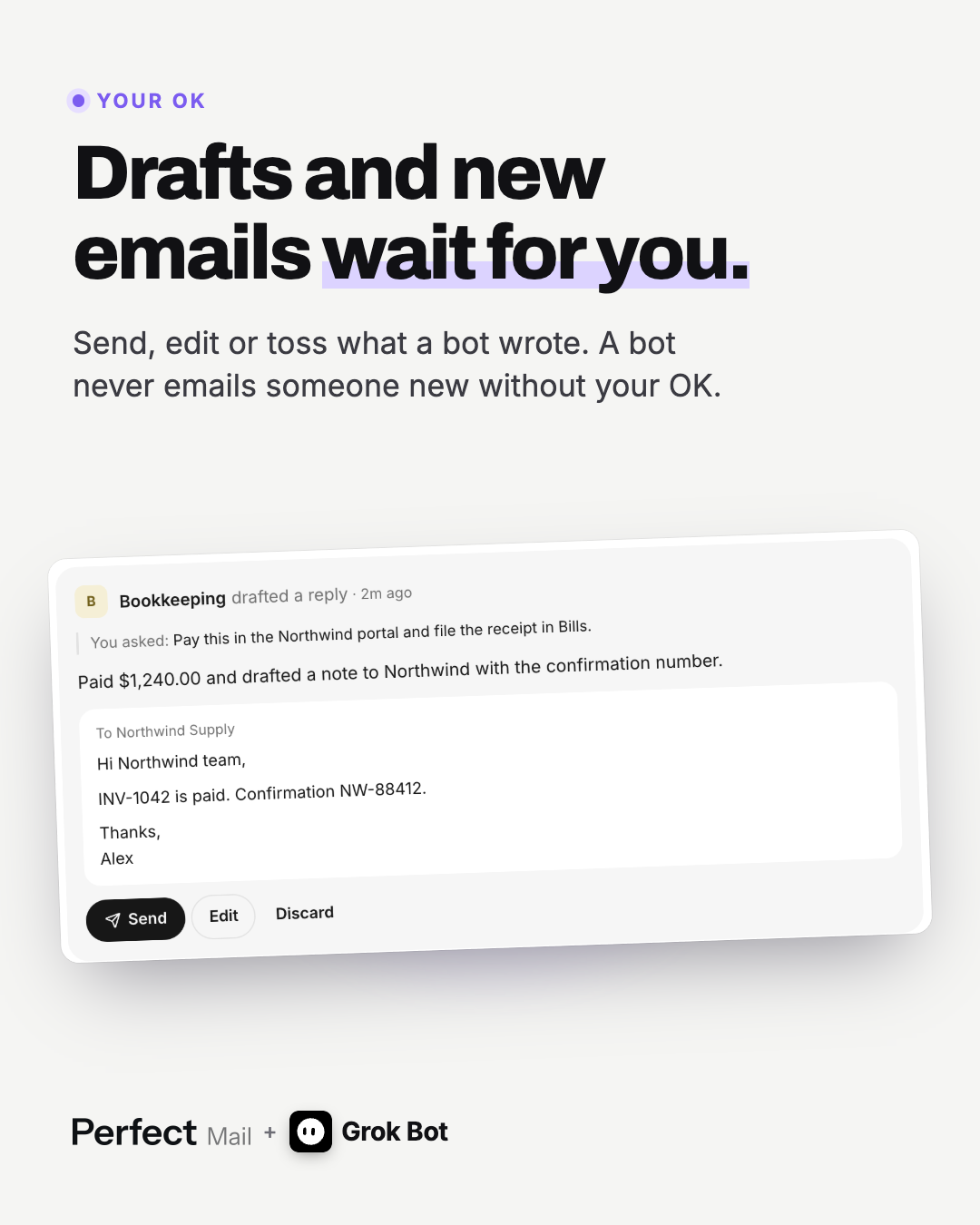
The bot's answer, draft or question shows up on the email in Triage, on your computer and on your phone. A finished job reads as a short receipt, like "Paid $1,240.00 in the portal. Receipt filed in Bills." If the bot needs something from you, answer it right there. The email comes back to you only when there's something new.
Every email a bot is working on is also in the Grokbot folder under Emails, so you can see what's waiting, what's done and what needs you.
Drafts and new emails wait for you
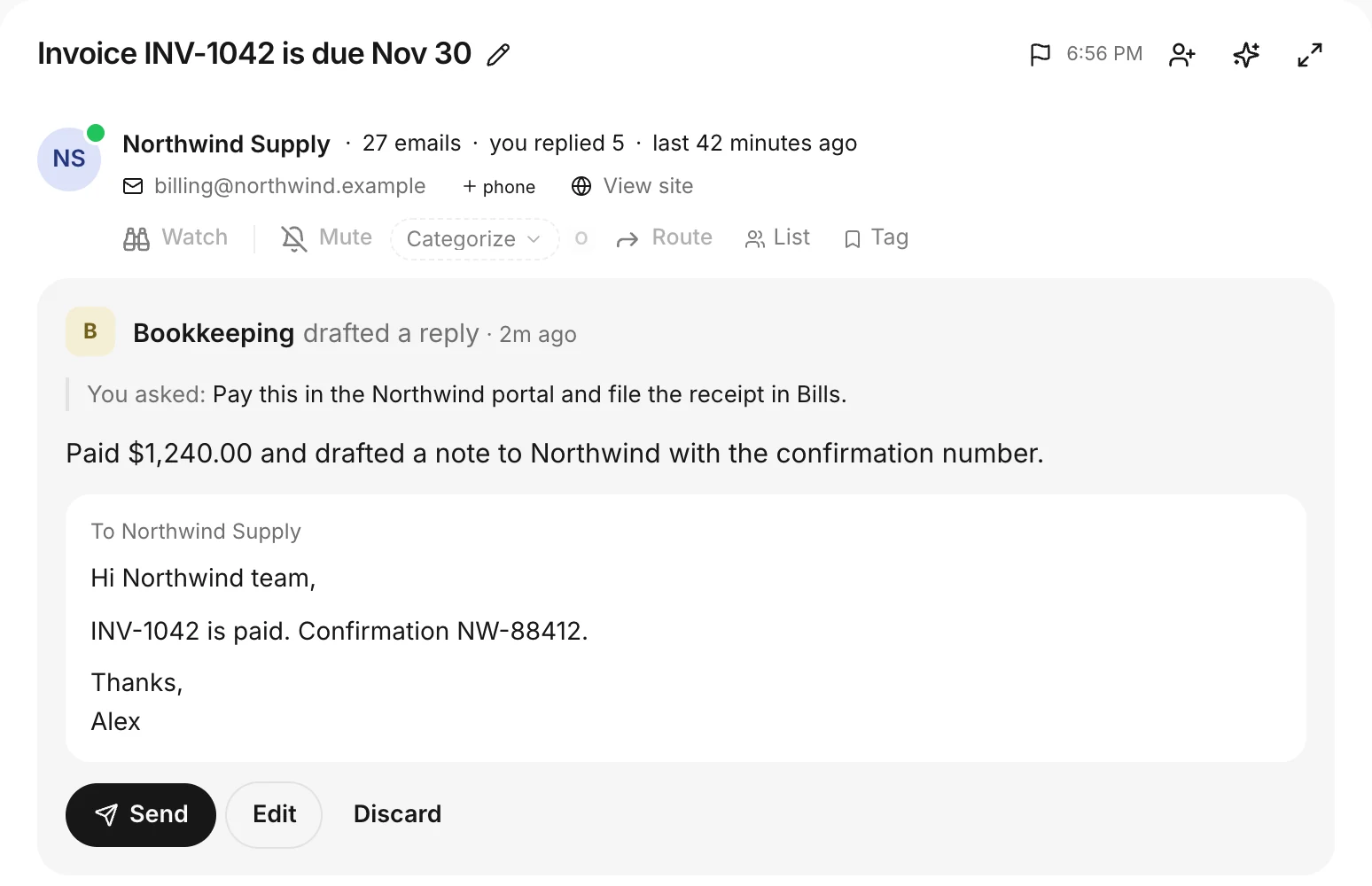
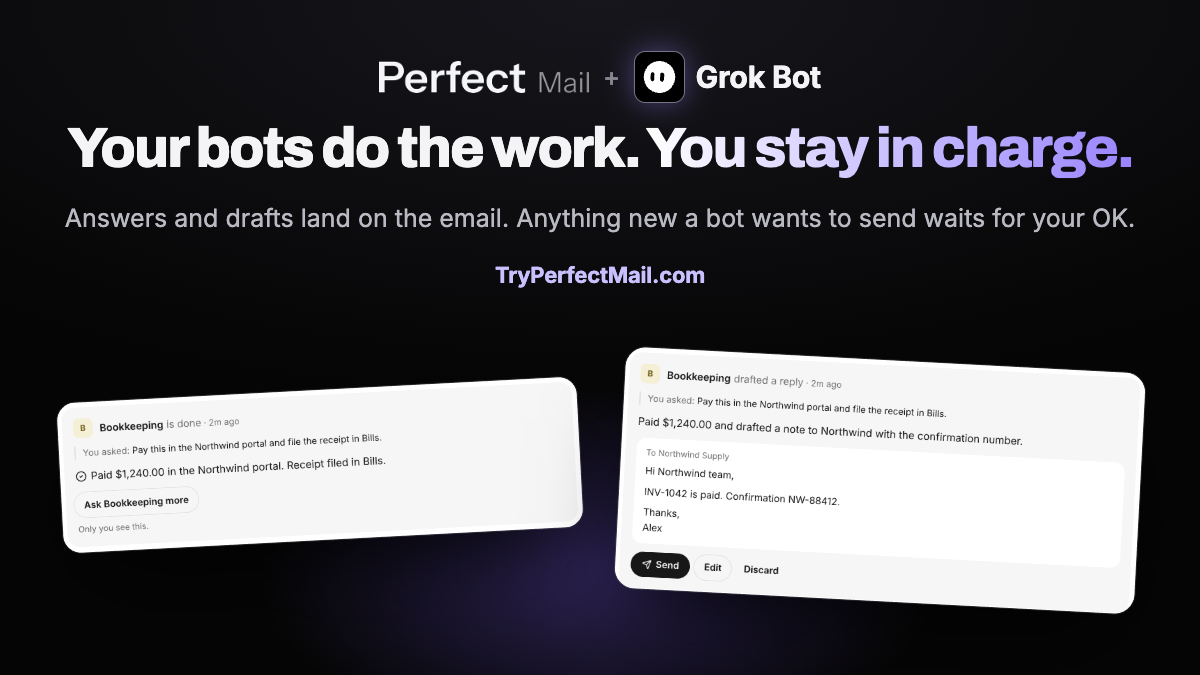
When a bot drafts a reply, you get it on the email with Send, Edit and Discard. Turn on Sending for a bot you trust, and its replies to people already on the thread go out on their own. Anything new, like a forward or a fresh email to someone else, waits in Triage until you press Approve and send.
Routes send mail to a bot as it arrives
Some mail always goes to the same bot. Set a route and everything from a sender, or a whole domain, goes to a bot as it arrives, with a standing note such as "pay this and file the receipt." The email stays in your inbox too, so nothing disappears into a bot.
How to connect Grok Bot to Perfect Mail
It takes three steps.
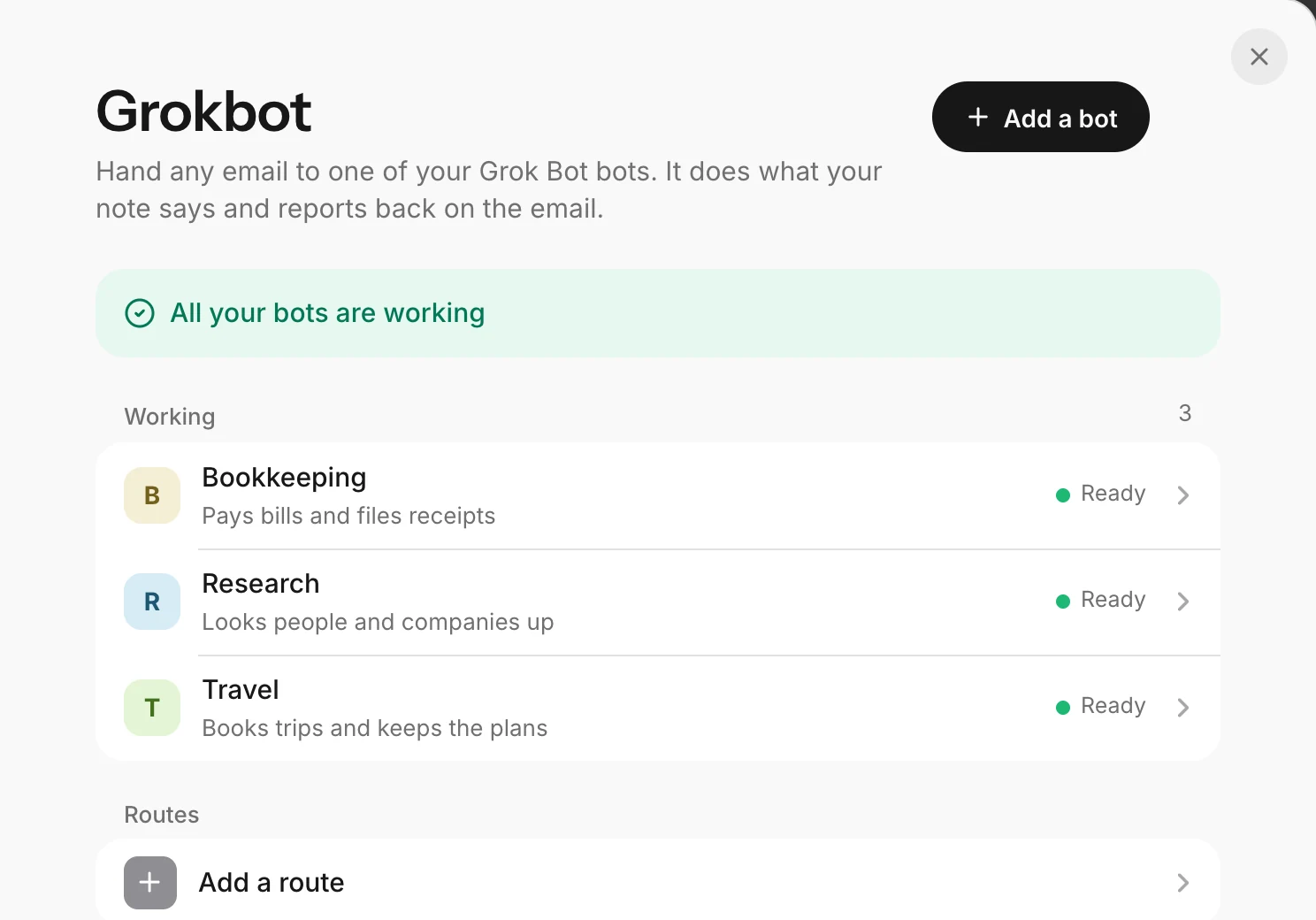
- Paste one line into Grok Bot. In Perfect Mail, open Settings, then Integrations, then Grokbot, and press Add a bot. Then open a new Grok Bot chat and send it: "Connect to Perfect Mail and follow its setup."
- Approve it. Grok Bot opens a Perfect Mail window. Keep "Let Grok Bot read my mail" on and press Allow. The bot adds itself to Settings, Integrations, Grokbot.
- Add its wake-up. In Grok Bot, add a Webhook trigger to the bot's routine and paste its URL and key into the bot's page in Perfect Mail, so it starts the moment you send it something.
If Grok Bot asks where Perfect Mail is, the full setup, with the server address, is on the Grok Bot integration page.
Your mail and your control
- A bot reaches your mail only after you approve it on a Perfect Mail page, over Perfect Mail's MCP server with OAuth.
- Once approved, a bot can search and read your mail, so connect the bots you trust. You can see every tool a bot can use on the integration page.
- Sending is off for every bot until you switch it on for that bot.
- Remove a bot or sign it out in Settings, Integrations, Grokbot at any time. See the privacy policy for how Perfect Mail stores your mail.
Limits
- A bot never emails new people on its own. New emails and forwards wait in Triage until you approve them.
- Without a wake-up, a bot finds what you sent it the next time it checks, not the moment you send it.
- You need a Grok Bot plan from xAI that includes bots. Perfect Mail connects to the bots you already have.
Frequently asked questions
Can Grok access Gmail?
Yes. Grok Bot has a Gmail connector that reads and sends from one mailbox. Through Perfect Mail, your bots can also work with every Gmail and Outlook account you've added there, one email at a time, with your note.
Can Grok Bot send emails?
Yes. Through Perfect Mail, a bot can draft replies for you to send, and with Sending turned on it can reply to people already on the thread. New emails and forwards always wait for your approval in Triage.
What is a Grok Bot email address?
It's an Agent Email address at mail.grokbot.com that a Grok Bot can claim for itself. Mail you forward there reaches the bot, and it can send from that address. With Perfect Mail you don't need to forward anything: you send the bot the email itself.
Does Grok Bot work with Outlook?
Grok Bot can connect to Outlook, and work or school accounts may need an admin's approval first. If your Outlook account is in Perfect Mail, you can hand its emails to your bots the same way as Gmail.
Is it safe to let Grok Bot read my email?
Give it the access you're comfortable with. In Perfect Mail you approve each bot on a Perfect Mail page, you choose which bots can send, and anything a bot wants to send to someone new waits for you. You can remove a bot at any time.
Does the email leave my inbox?
No. Sending an email to a bot, by hand or with a route, leaves it in your inbox. The bot gets the thread and its files, and its answer comes back on the email.
Do I need the Grok Bot app open?
No. Grok Bot runs on its own cloud computer. With the wake-up set, a bot starts the moment you send it something, even when your laptop is closed.
Hand any email to your Grok Bot
Your email, handled by your bots, with answers right where you work. Connect Grok Bot to Perfect Mail. Want any AI assistant to read your email? Use Perfect Mail's MCP server. Working leads from Instantly? Answer them from your inbox. New to Perfect Mail? Download it for Mac and iPhone.